Remember split screen on consoles? Our afternoons spent playing Mario Kart, Super Smash Bros., and other classic games! GCast brings back that feeling, but with your phones. No console needed. Here’s how to set it up in the same room.
How to Set Up Split Screen
Step 1: Open GCast and switch to Party mode
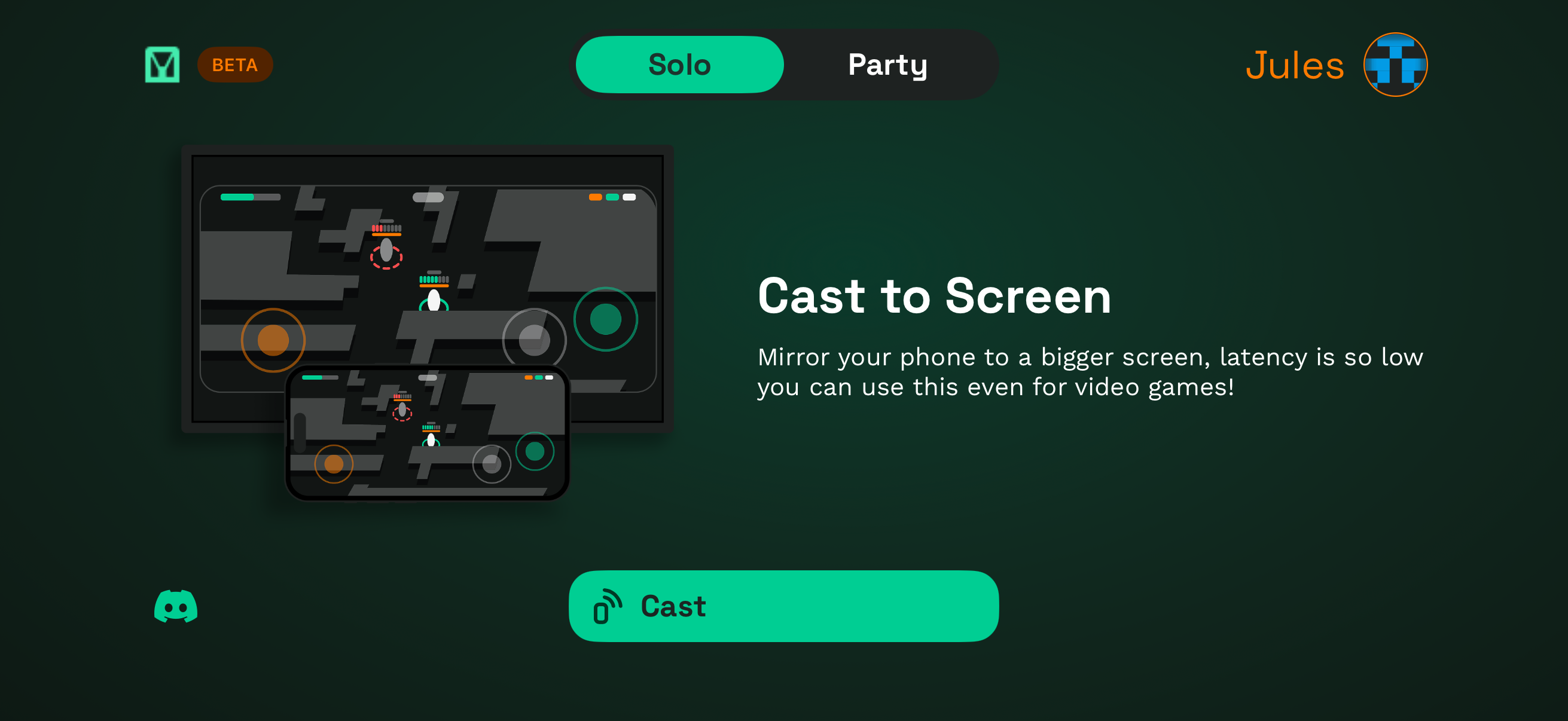
Open GCast on the first player’s phone and tap the Party tab at the top. Solo mode mirrors a single phone to your screen. Party mode creates a shared room where two (or more) players cast together.
Step 2: Get your room code
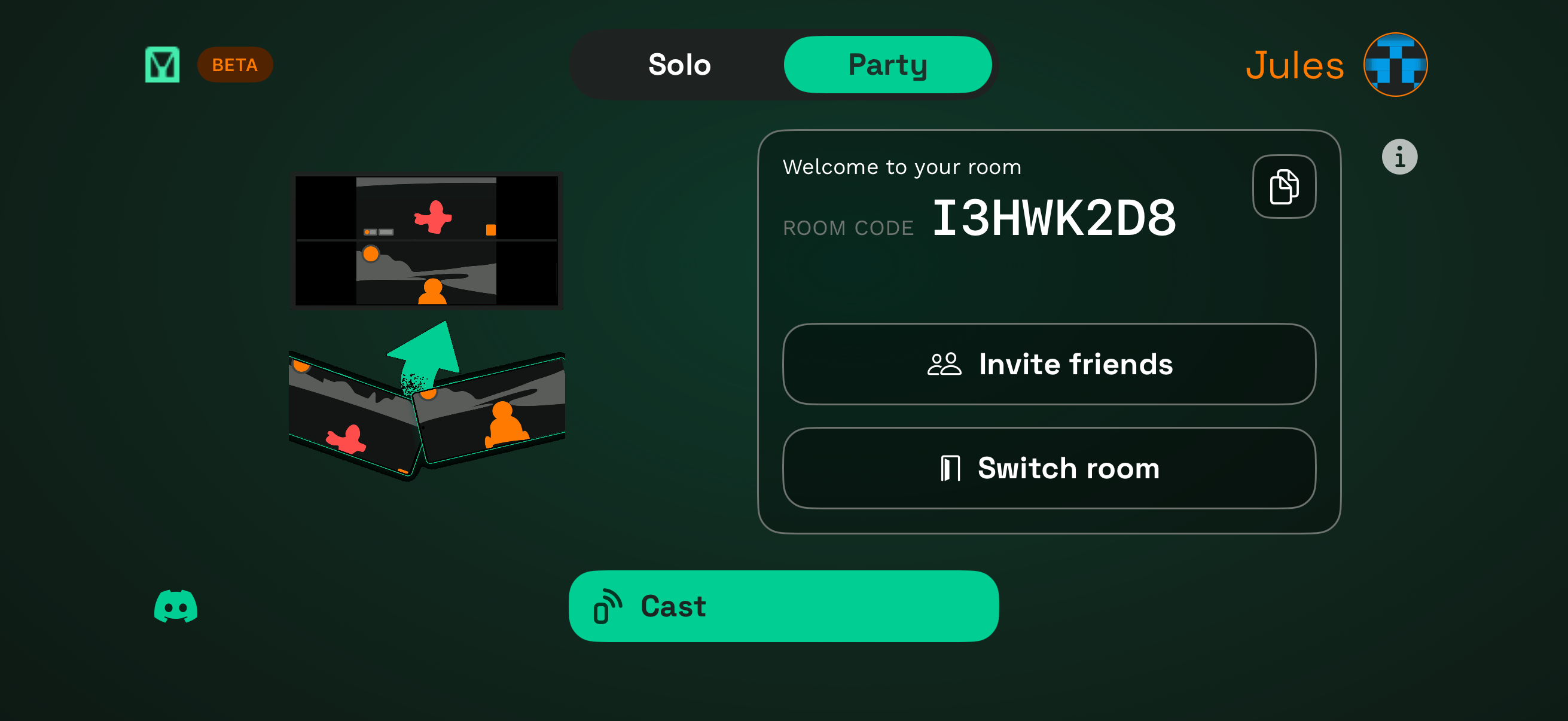
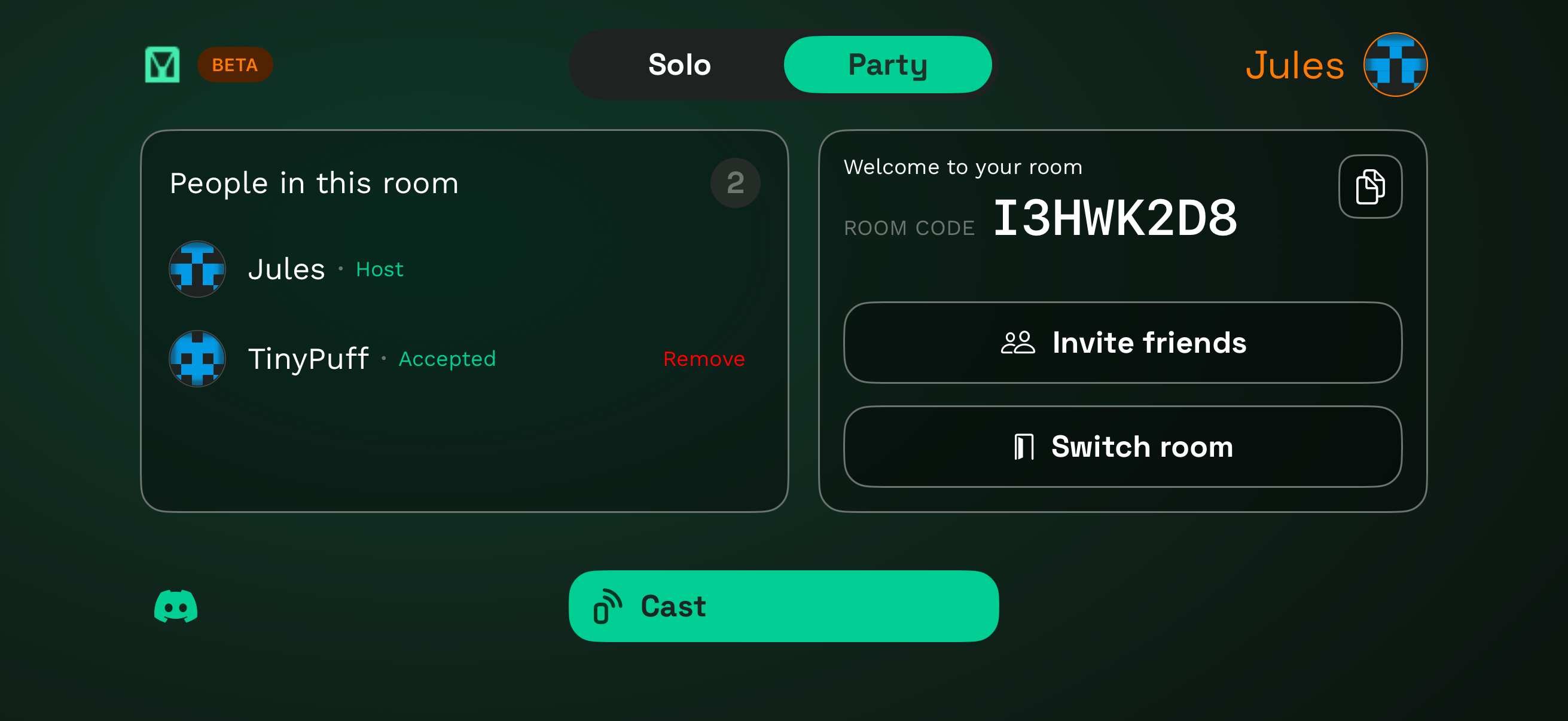
The moment you switch to Party, GCast spins up a fresh room with a unique code (like I3HWK2D8). This is what Player 2 uses to join you.
Step 3: Share the code with Player 2
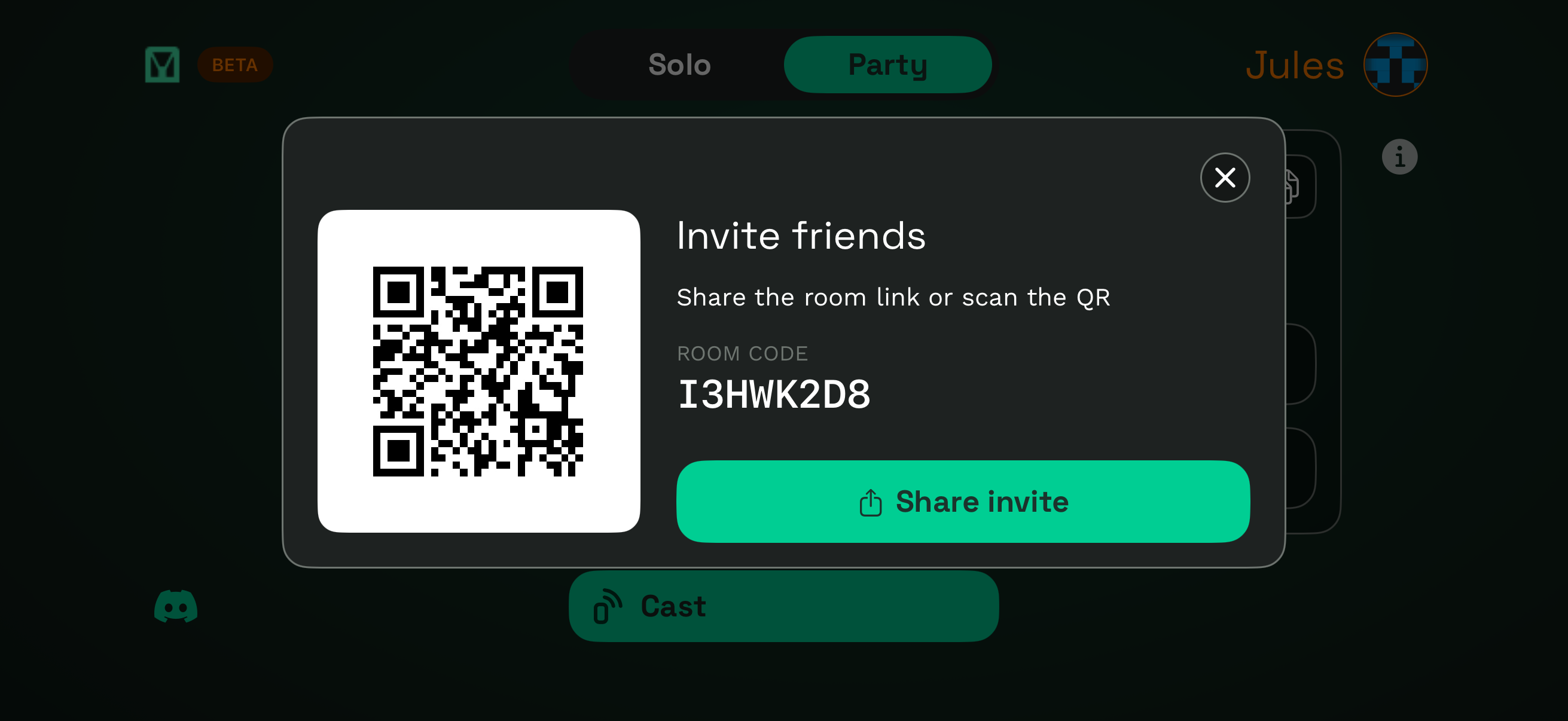
Sitting on the same couch? Just read the code out loud. You can also tap Invite friends and have them scan the QR for an instant join. The room works the same whether Player 2 is next to you or across the country, but for local play the simplest path is just reading the code.
Step 4: Player 2 requests to join
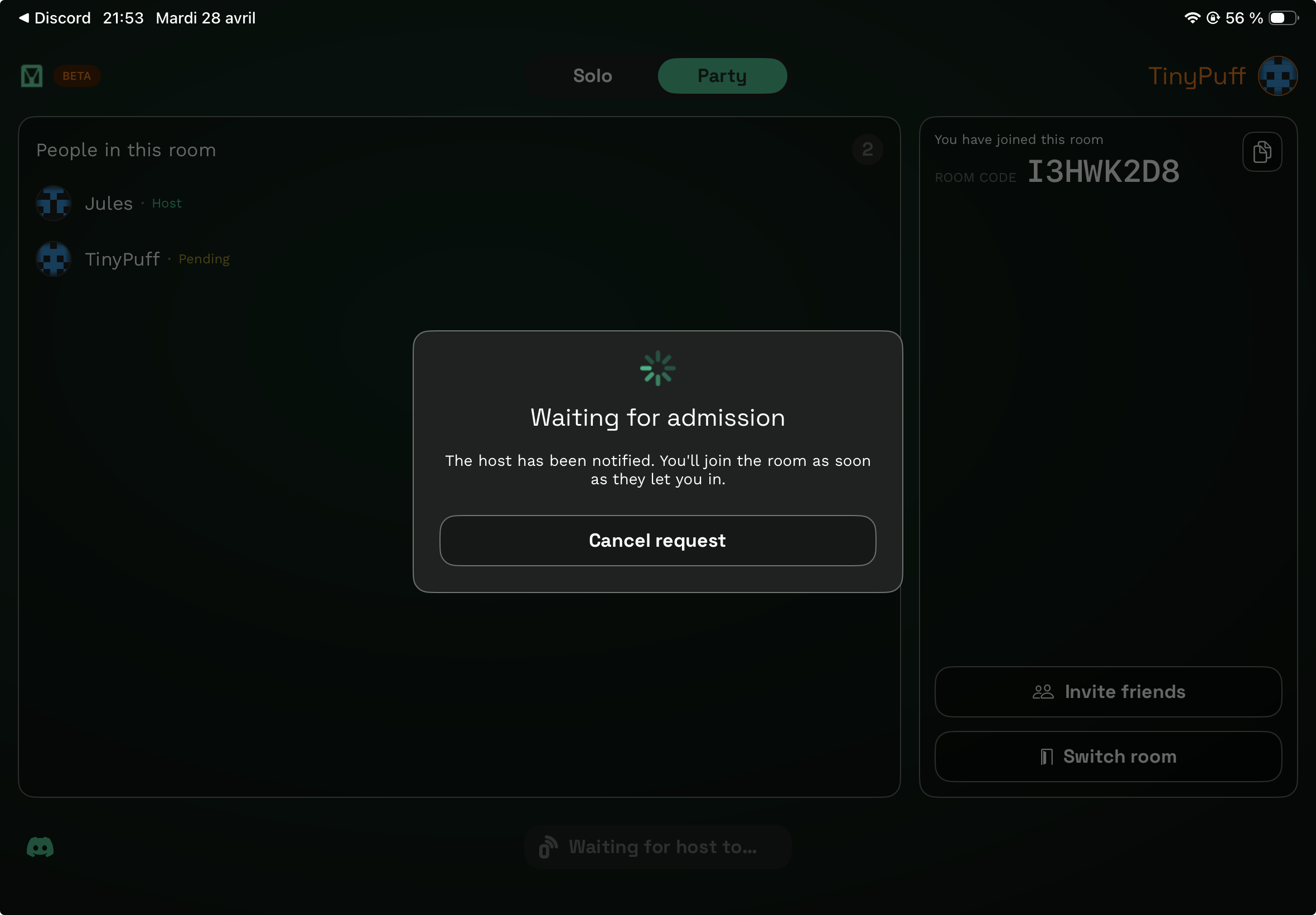
Player 2 opens GCast, taps Party, enters the room code (or scans the QR). They land on a “Waiting for admission” screen on their phone or tablet, and their name shows up in your room as Pending.
Step 5: Accept Player 2
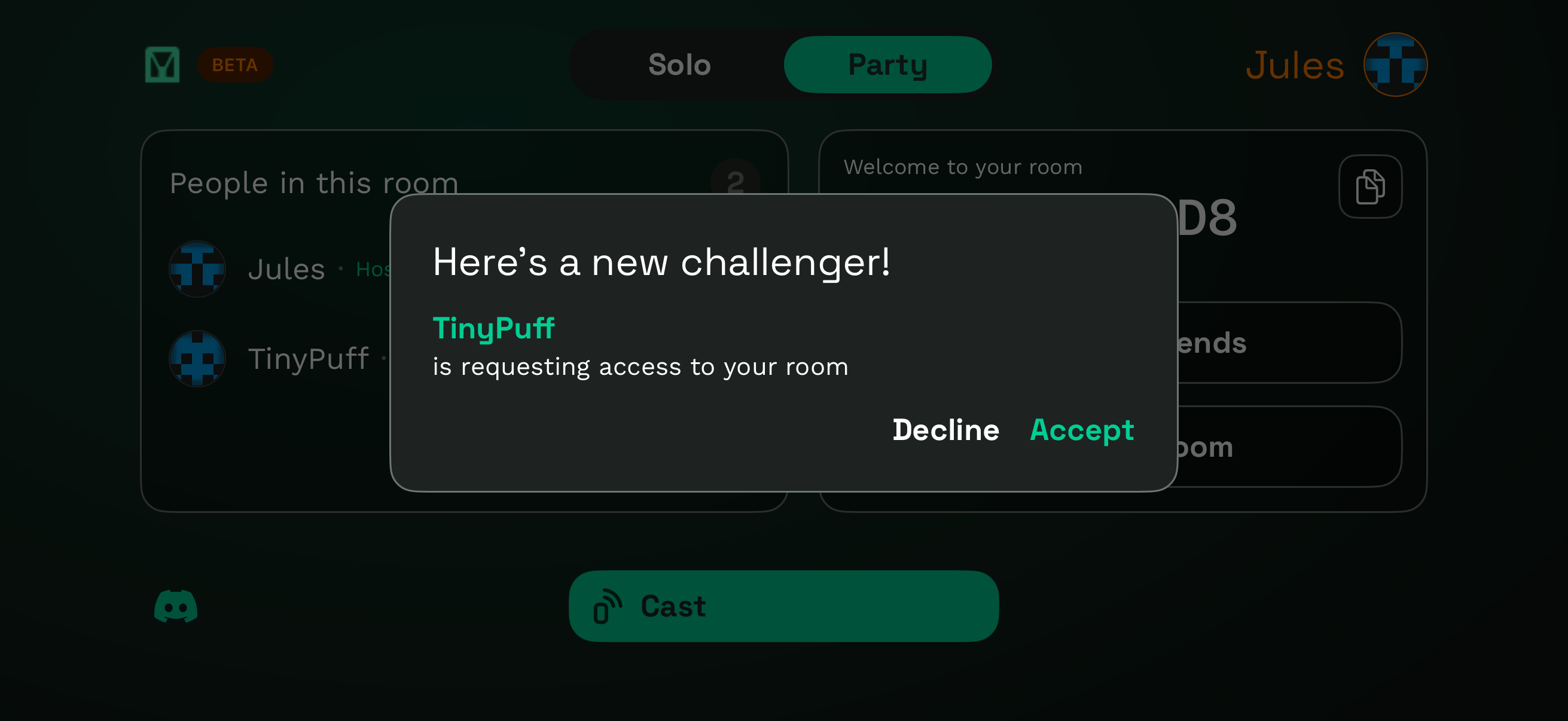
You get a “Here’s a new challenger!” prompt with their name. Tap Accept and they join the room.
Step 6: Cast and play together
Once both players are in, tap Cast. Both phones land side by side on the big screen. Open your games and you are off.
You can also use Bluetooth gamepads for games that support controllers. Each player pairs a gamepad to their phone and plays with physical controls, just like a console setup but running entirely from your phones.
Use Cases for Split Screen
Couch co-op with friends
Play competitive games like Brawl Stars head-to-head, or team up in co-op games like Minecraft with both screens visible at a glance.
Game night with the family
Turn any mobile game into a shared living room experience. Kids can play Roblox side by side, or the whole family can take turns in Stumble Guys with everyone watching.
Travel and hotel rooms
Stuck in a hotel with one screen? Two phones and GCast turn it into a multiplayer gaming setup. No console to pack, no special cables. Just connect to the hotel WiFi.
Competitive practice
Want to compare strategies in real time? Split screen lets two players see each other’s screens simultaneously. Great for coaching or analyzing gameplay together.
Tips for the Best Split Screen Experience
- Use 5GHz WiFi for smoother streaming from both phones
- Keep both phones charged since casting and gaming together drains battery fast
- Sit where you can see the screen clearly because each half is smaller than full-screen casting
- Use gamepads if your games support them for more comfort during long sessions
Ready to Try?
Download GCast on two phones, switch to Party mode, share the room code, and tap Cast. You’ll be playing side by side in under a minute.