Remember Mario Kart on the couch? Four controllers, one CRT, snacks everywhere. That feeling never really left, it just moved. Now your squad lives in five different cities, your “couch” is a Discord call, and the game is Fortnite, PUBG, or Brawl Stars.
Split screen still works for both. GCast Party mode lets you play side by side with friends in the same room, or with friends a thousand miles away, using the exact same flow.
One Flow, Two Vibes
Whether you are passing controllers around the living room or jumping into a Brawl Stars duo from across the country, GCast Party works the same way. You spin up a room, share the code, your friend joins, you cast. The big screen shows both players side by side either way.
How to Set Up a GCast Party
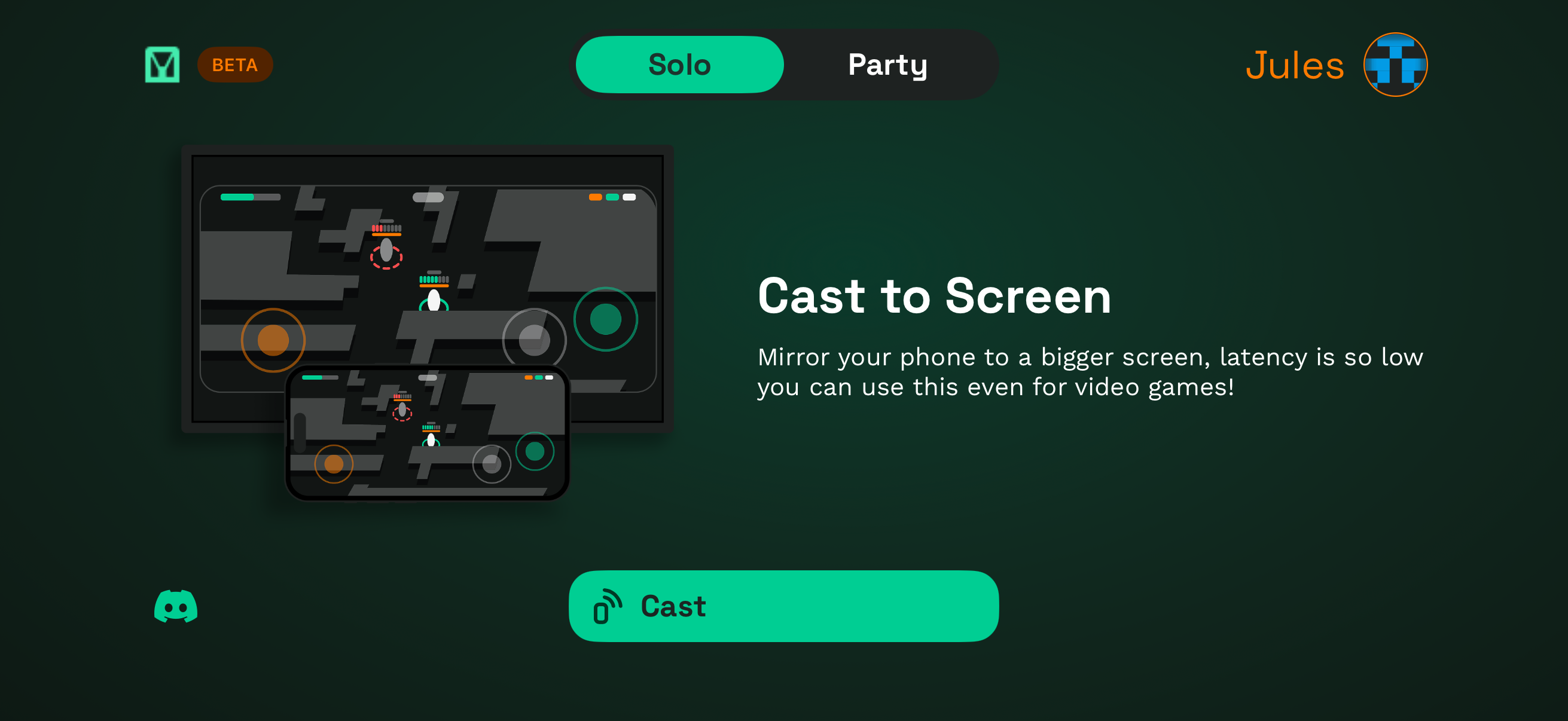
Step 1: Open GCast and switch to Party mode
Open GCast and tap the Party tab at the top. Solo mode mirrors a single phone to your screen. Party mode creates a shared room where multiple players cast together.
Step 2: Get your room code
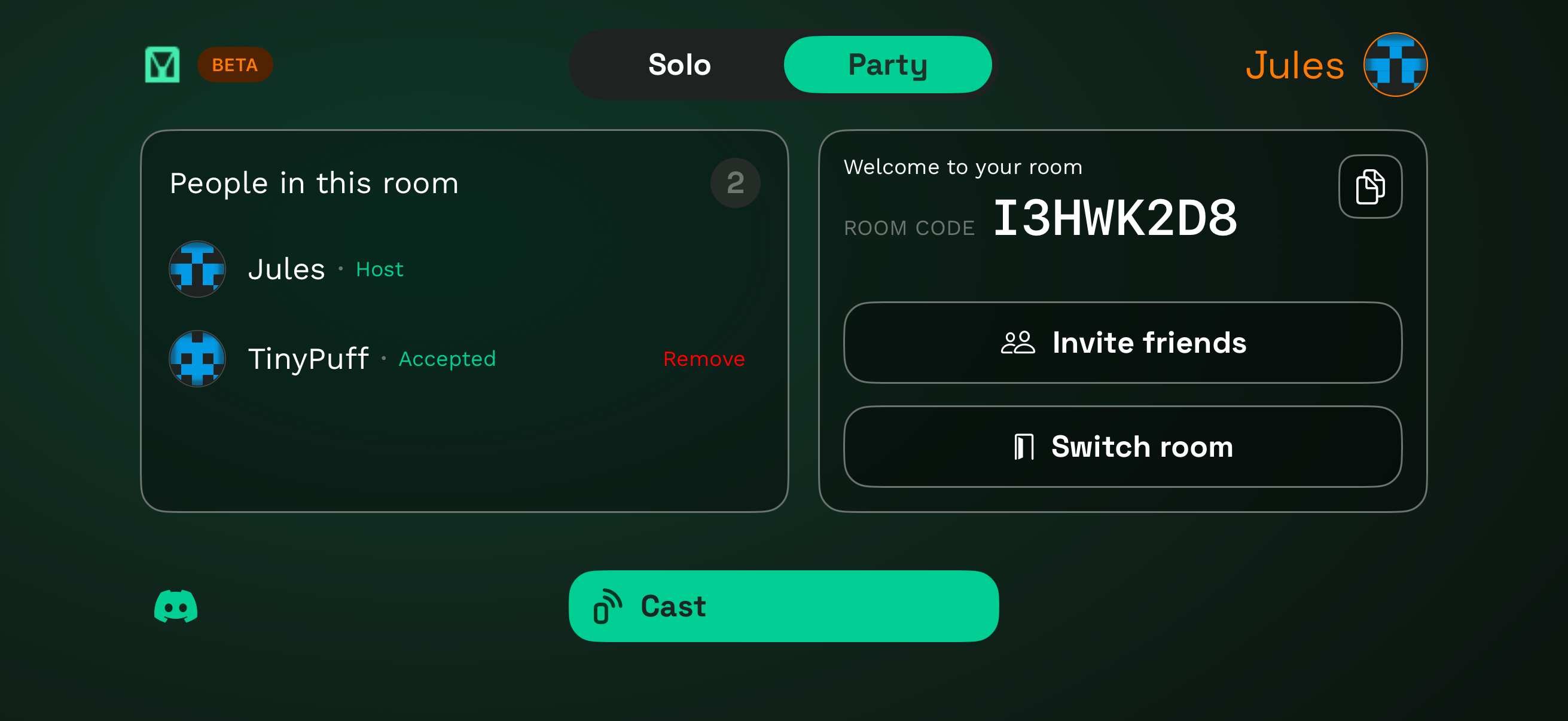
The moment you switch to Party, GCast spins up a fresh room with a unique code (like I3HWK2D8). This is the key your friends use to join you.
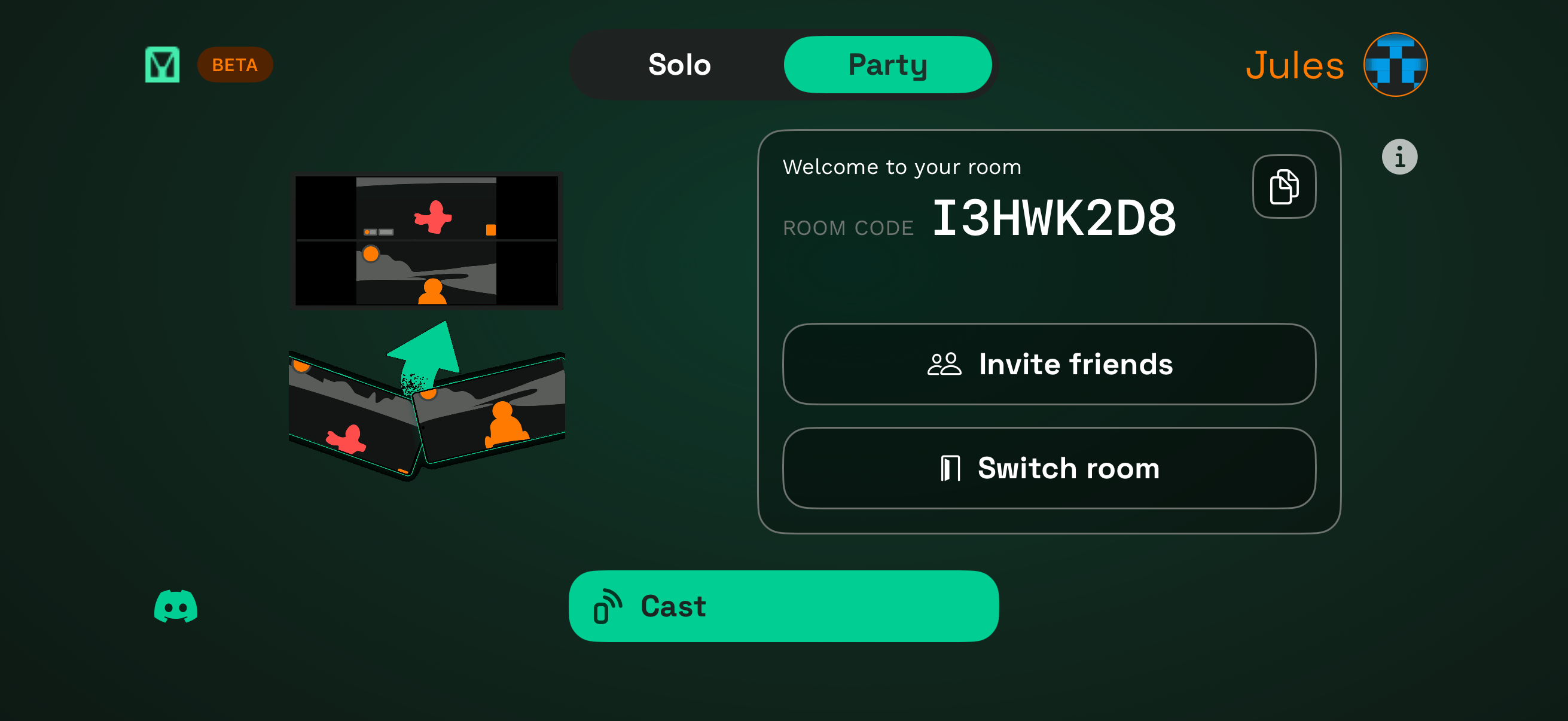
Step 3: Invite friends
Tap Invite friends to open the share sheet. You can send the room link directly through any chat app, copy the code, or have a friend in the room scan the QR. Same code works for everyone.
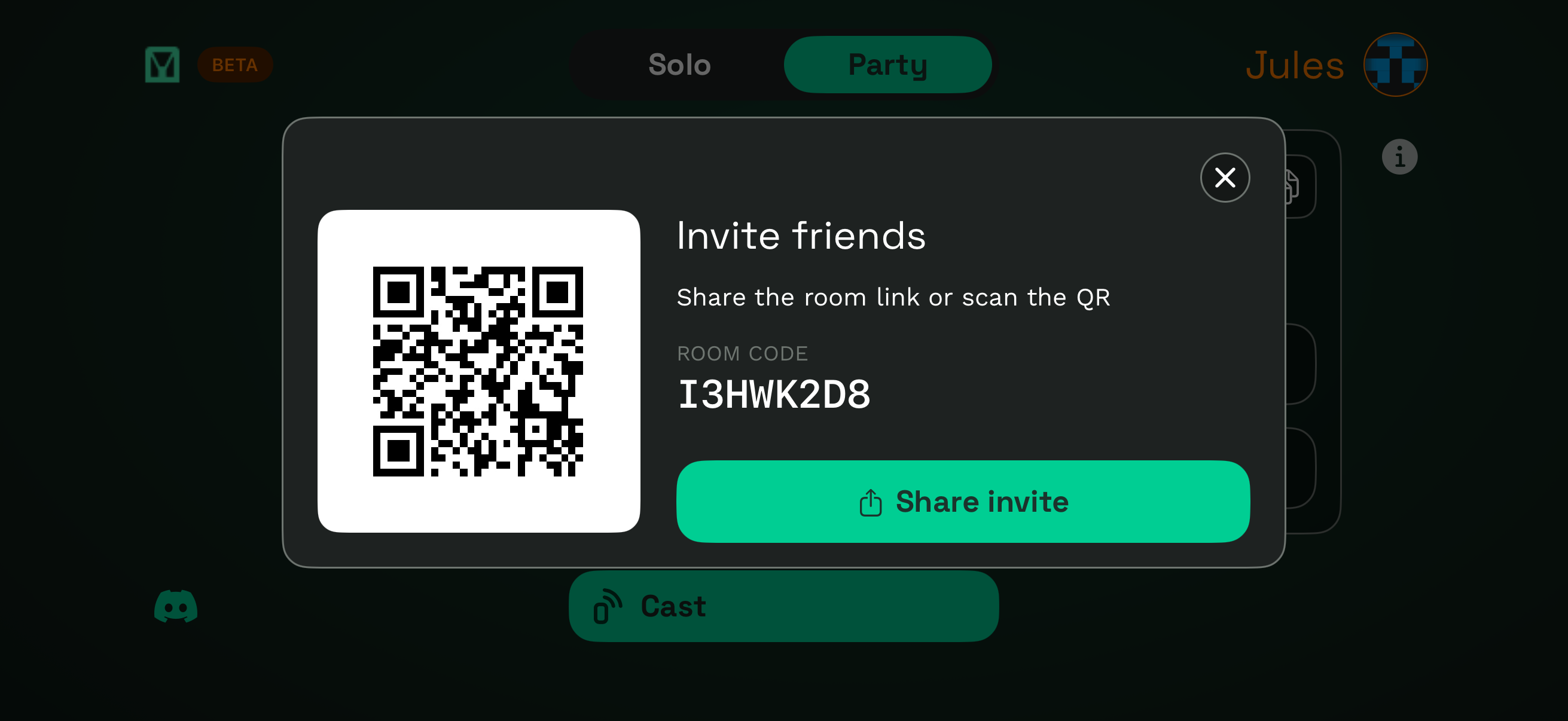
Step 4: Friend opens the invite
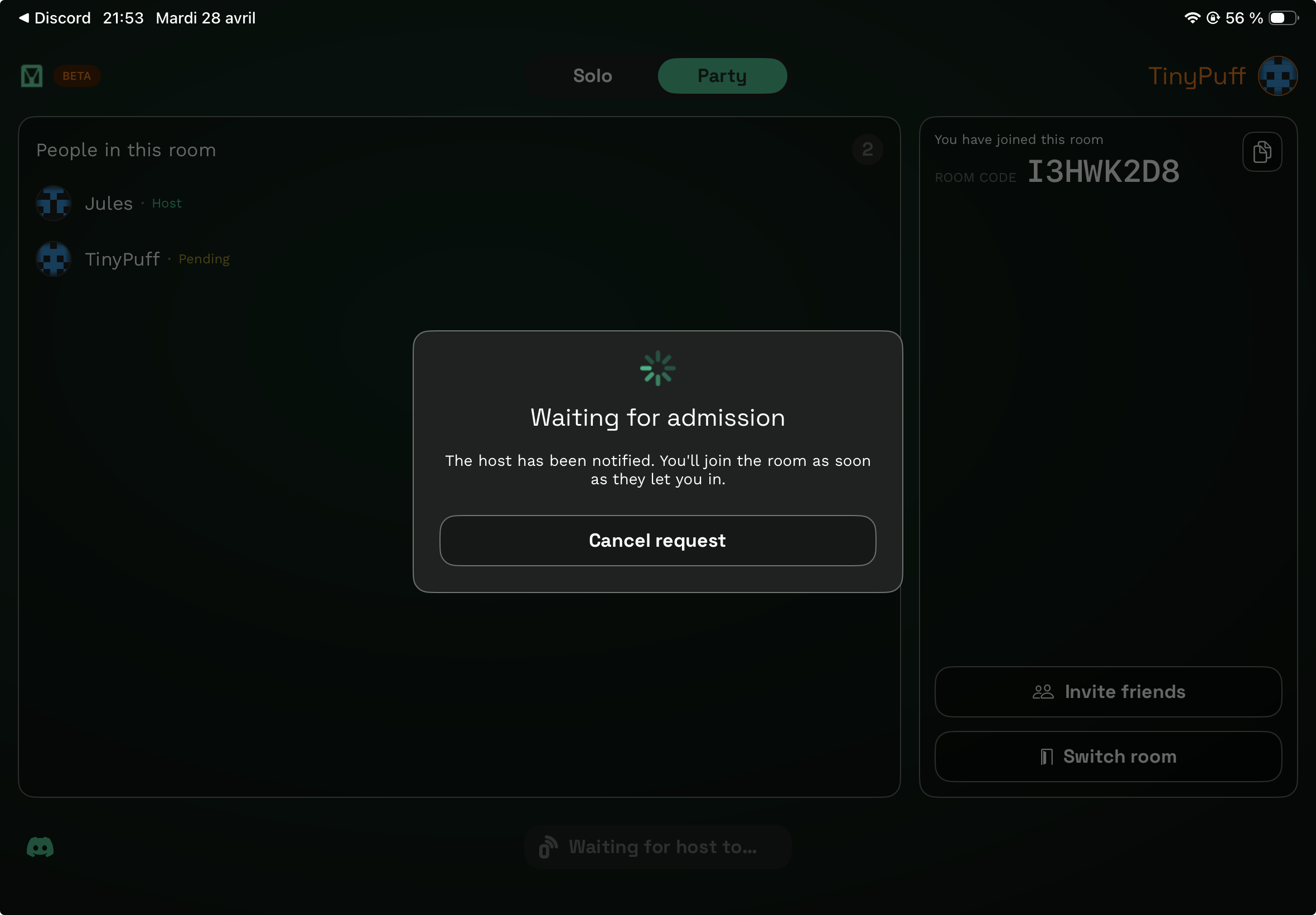
Your friend taps the link or scans the QR. They land in a “Waiting for admission” screen on their phone or tablet. Their name shows up in your room as Pending.
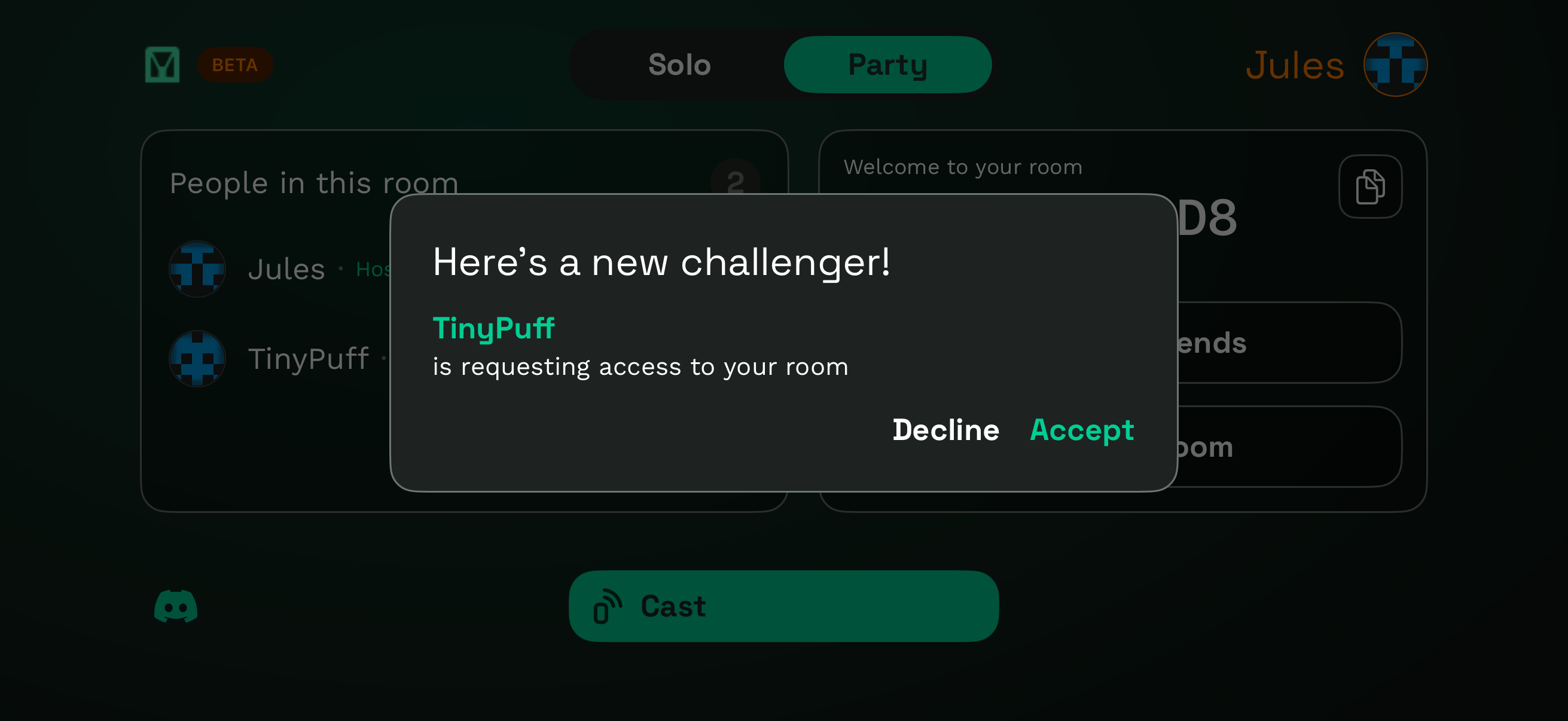
Step 5: Accept the new challenger
You get a “Here’s a new challenger!” prompt with their name. Tap Accept and they join the room.
Step 6: Cast and play together
Once everyone is in, tap Cast. Both phones land on the big screen, side by side. Open your games and you are off.
For longer sessions, pair a Bluetooth gamepad to your phone. Anyone in the room can do this independently, and any game that supports controllers will pick it up.
Where Party Mode Shines
Squad up in PUBG with friends across the country
Your PUBG squad doesn’t live on the same block anymore, but rotations and callouts still need to land. Drop a room code in the group chat, hop on Discord, and watch each other’s angles in real time. Spotting a flank on your teammate’s half of the screen hits different when you are reacting to it instead of just hearing about it.
Brawl Stars duos that actually feel coordinated
Co-op shines when you can see what your partner sees. Party mode puts both Brawl Stars perspectives on one screen so pushes, baits, and Super timing turn from guesswork into plays. Showdown duos suddenly feel like a real team sport.
Couch chaos with Stumble Guys
Same room, same vibe as console split screen. Two phones, one TV, three rounds of Stumble Guys before someone rage quits. Perfect for a Friday night with friends or a quick round with the kids before dinner.
Watch a friend’s run while you play yours
Speedrunning, learning a new game, or just hyped about what your friend is doing? Side by side casting means you do not have to choose between playing and watching.
Family game time across distance
Cousins in another country. Grandparents on the other coast. Party mode turns mobile games into something you do together, not separately.
Capture the Best Moments and Share Them
The clutch 1v3, the impossible Showdown win, the Stumble Guys ragdoll moment that made everyone scream. Split screen sessions are full of clips worth saving. Record straight from your screen, post to TikTok, Instagram Reels, X, or your group chat, and let the whole internet enjoy what you and your friends just pulled off.
Tips for the Best Party Experience
- Solid WiFi on both ends keeps streams smooth, especially for remote players
- Drop a Discord or FaceTime call alongside it so trash talk and callouts work like they should
- Use gamepads for longer sessions, each player pairs their own
- Host can remove players from the People in this room list if needed
- One room code, share it freely anyone with the link can request to join, you decide who gets in
Ready to Squad Up?
Open GCast, switch to Party mode, send the room code to your friends. Whether they are sitting next to you or across the world, you’ll be playing split screen together in under a minute.