Call of Duty Mobile feels great on a phone. It feels even better on a 27 inch monitor with a controller in your hands. The catch is there is no native CoD Mobile TV app, no console version, and the cloud-gaming alternatives add input lag that ruins the gunfights.
GCast fixes that without a console or an emulator. Your phone runs the game, a Bluetooth controller handles the inputs, and GCast mirrors the screen to any TV or monitor over WiFi. New to GCast? Read what GCast is and how it works first, then come back here.
Built for Controllers, and That Pairs Perfectly With GCast
This is where CoD Mobile gets interesting. Unlike a lot of mobile shooters, Call of Duty Mobile has full native gamepad support: Xbox controllers, PlayStation controllers, and most HID Bluetooth pads work straight out of the box. The on-screen buttons disappear the moment a controller connects, the aim assist behaves like the console version, and the menus all map to the gamepad.
That changes what casting unlocks. With most mobile games, casting to a TV gives you a bigger screen but you are still tapping a sheet of glass on your lap. With CoD Mobile plus GCast, you get something that is functionally identical to a console: phone runs the game, gamepad drives the inputs, TV shows the action. No emulator, no console purchase, no input lag. Just the mobile build of CoD running natively, on a real controller, on a real TV.
Why Play CoD Mobile on a Big Screen
A bigger screen is not just nicer to look at. In a fast game like CoD Mobile, it changes how you play.
- Sightlines open up. Distant heads on Standoff or Crash become real targets, not 8 pixel guesses.
- Mini-map reads faster. A 27 inch monitor turns the radar into something you actually use, not squint at.
- Reaction time stops being half about screen real estate. You see the flank from the side of the frame instead of after they shoot you.
- Your hands stop cramping. Controller in your lap, phone on a stand, no death grip on a slippery slab of glass.
How to Set Up CoD Mobile on TV With GCast
Step 1: Pair a Bluetooth controller to your phone
Open your phone’s Bluetooth settings and pair an Xbox, PlayStation, or any HID gamepad. CoD Mobile supports controllers natively on most modern devices, so the game picks it up the moment it sees one. If you do not see the on-screen buttons disappear when you pick up the controller, double-check controller support is on in CoD Mobile’s settings.
Step 2: Open GCast and pick your TV
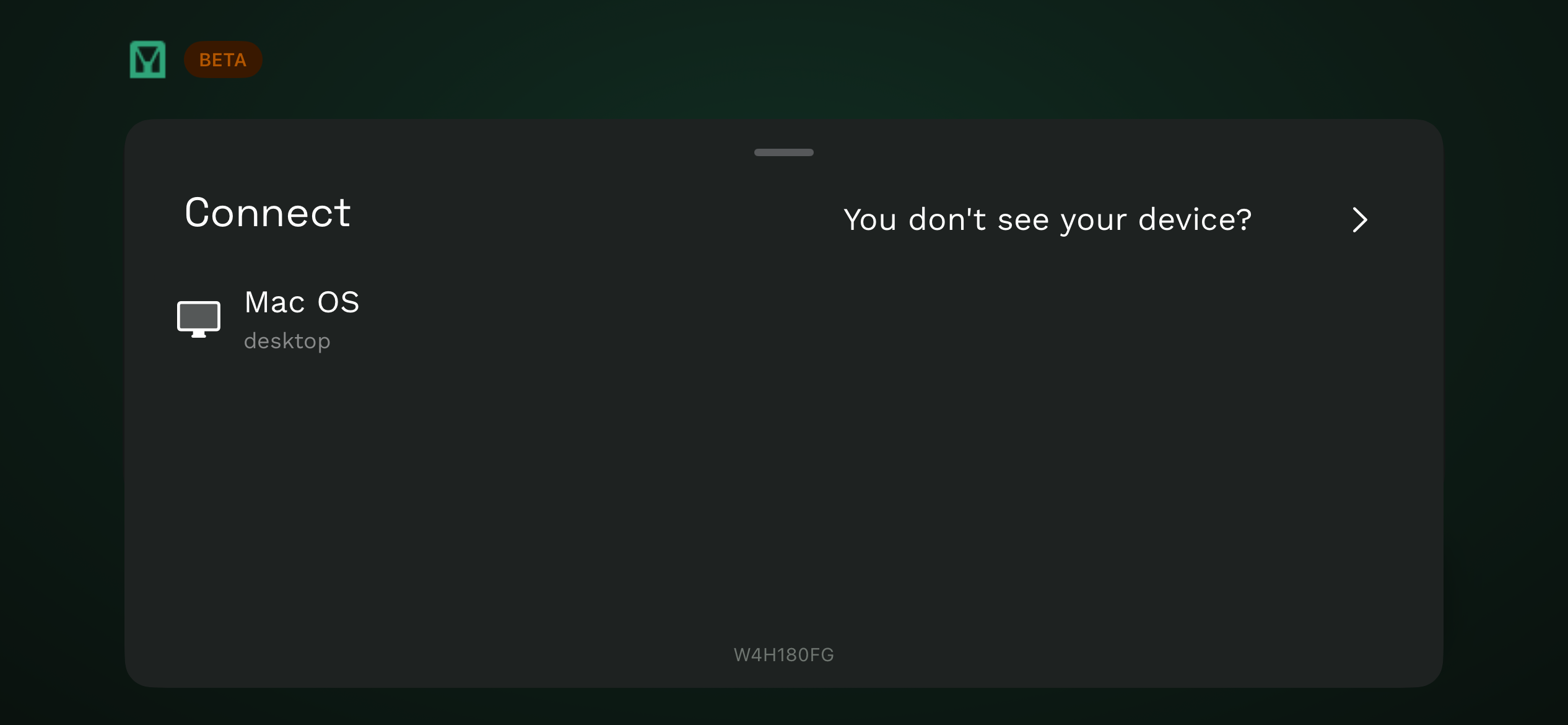
Launch GCast on your phone. Stay in Solo mode (we are casting one phone, no party needed). GCast auto-detects screens on your WiFi network: smart TVs, laptops, monitors with a browser, tablets, anything that runs Chrome, Safari, Edge, or Firefox.
Step 3: Start the broadcast
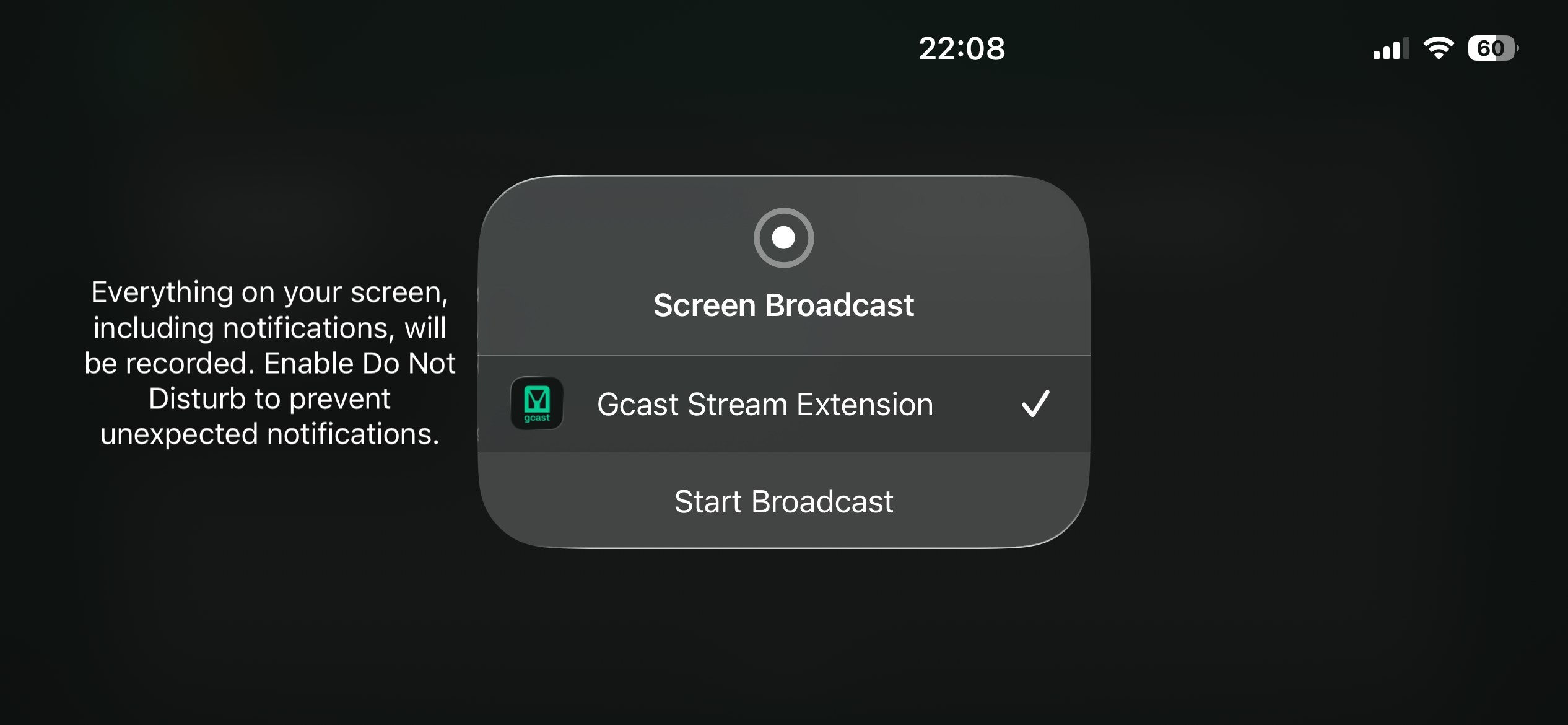
Tap Start Broadcast and confirm the screen broadcast prompt. Your phone’s display lands on the big screen with virtually zero added latency.
Step 4: Open Call of Duty Mobile and play
Launch CoD Mobile. Jump into Multiplayer, Battle Royale, or Ranked. The controller drives the game, the phone runs it, and your monitor or TV shows it. That is the whole setup.
CoD Mobile on TV: Options Compared
There are a few ways to get Call of Duty Mobile onto a big screen. Here is how they actually stack up.
| Option | Runs the real mobile build | Split screen | Cross platform | Input lag | Setup time | Cost |
|---|---|---|---|---|---|---|
| GCast (cast phone to TV) | Yes | Yes (Party mode) | iOS + Android | 16ms | Under 1 min | Free |
| PC emulators (Gameloop, BlueStacks) | No (emulator client) | No | PC only | 30-80ms+ | 30+ min | Free, needs PC |
| Cloud gaming streams | No (third-party stream) | No | Any platform | 30-100ms+ | Varies | $10-20/mo |
| AirPlay | Yes | No | iOS only | 30ms | 1 min | Needs Apple TV |
| Chromecast | Yes | No | Android-focused | 50ms+ | 1 min | Needs Chromecast |
The takeaway: if you want CoD Mobile on TV with a controller and zero added input lag, casting your phone via GCast is the only path that does not move you off mobile or out of the mobile matchmaking pool. Read more in our casting mobile games to TV guide.
CoD Mobile Tips for Big-Screen Play
- Use a controller you already trust. Xbox and PlayStation controllers pair cleanly to both iOS and Android. Don’t fiddle with cheap no-name pads right before a ranked grind.
- Run 5GHz WiFi. It cuts jitter and keeps the cast smooth during firefights and Battle Royale endgames.
- Plug in or sit near a charger. Casting plus CoD Mobile drains the battery fast, especially on max graphics settings.
- Mount your phone on a stand. You will not be touching the screen, but you do not want it face down on the desk either.
- Crank graphics if your phone can take it. A 27 inch monitor exposes any cheaping out you did on settings.
- Both Multiplayer and Battle Royale work the same. GCast does not care which mode you queue, it mirrors what is on the phone.
Want to Play With a Friend on the Same Screen?
You can also run two phones into one screen for true split-screen CoD-style 1v1s with a friend. The flow is the same as our PUBG Mobile split screen guide, just swap the game.
Will I Get Banned for Casting CoD Mobile?
No. GCast does not touch the game. It does not inject inputs, run on an emulator, or modify anything inside Call of Duty Mobile. Your phone runs the game the way it always does. GCast just mirrors what is already on your screen to another display, the same way AirPlay or Chromecast would.
This also keeps you in the mobile matchmaking pool. CoD Mobile flags emulator users so they get matched against other emulator players, which changes the lobby quality. Casting your phone to a TV does not put you in that bucket. You play against the same mobile lobbies you always did.
Ready to Drop In?
Pair your controller, open GCast, pick your TV, tap Start Broadcast, and load CoD Mobile. You will be playing Call of Duty Mobile on the big screen with a real controller in under a minute, no console, no emulator, no subscription.