Playing mobile games on a tiny screen when there’s a perfectly good TV in the room? That era is over.
Why Cast Mobile Games?
Mobile gaming has exploded — titles like Roblox, Brawl Stars, and Subway Surfers have console-quality graphics and gameplay. But your 6-inch phone screen doesn’t do them justice. Casting lets you:
- See more detail on a bigger display
- Play more comfortably from your couch
- Share the experience with friends and family in the room
How GCast Works
GCast takes a different approach from cloud gaming or screen mirroring. Here’s how to get started in three simple steps. For a full breakdown, see our complete guide to what GCast is and how it compares.
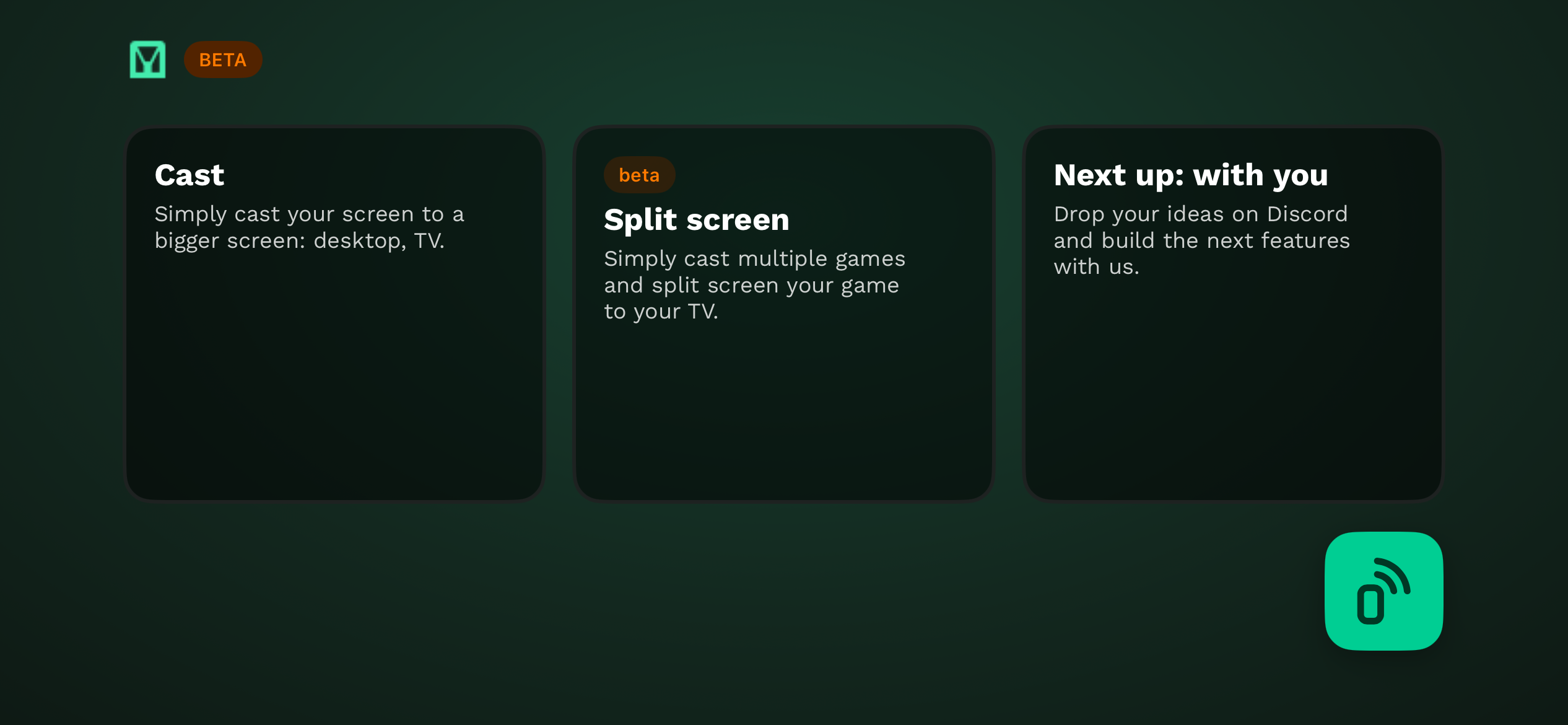
Step 1: Open GCast and pick what to cast
Once you open the app, you’ll see your casting options right away. Tap Cast to mirror a single game, or try Split Screen to cast multiple games side by side on your TV.
Step 2: Connect to a screen
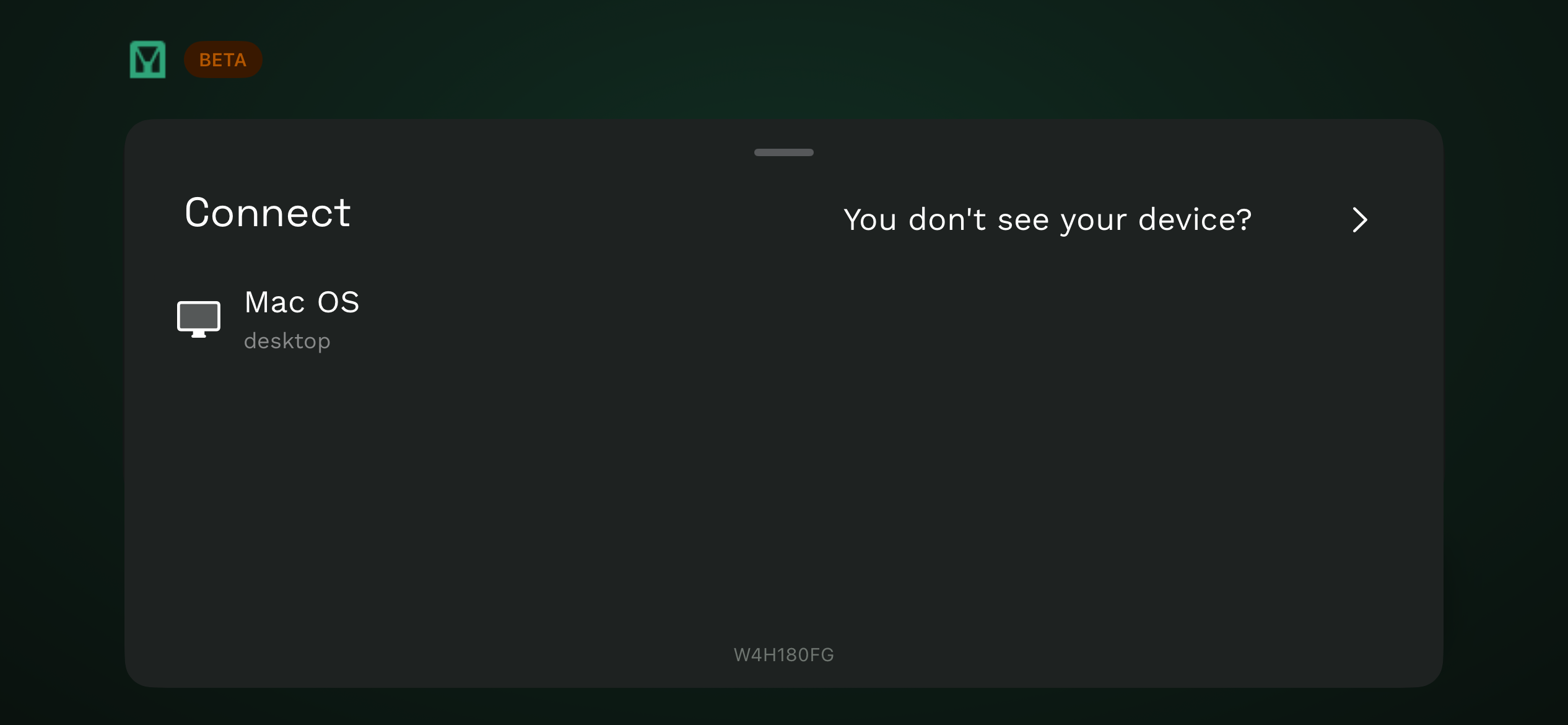
GCast automatically detects available screens on your WiFi network. Just tap the device you want to cast to — your TV, laptop, or tablet.
Step 3: Start the broadcast
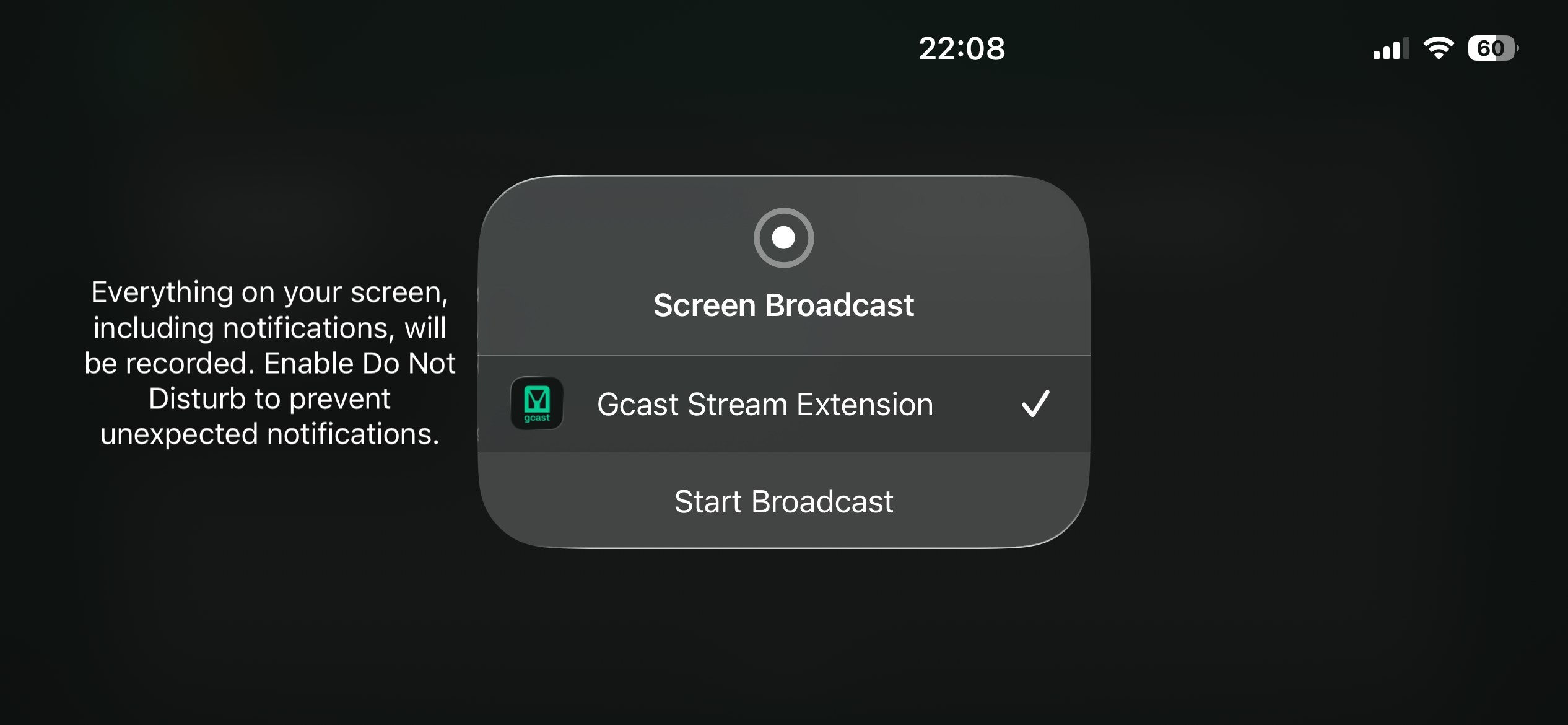
Your phone will ask you to confirm the screen broadcast. Select GCast Stream Extension and tap Start Broadcast — your game instantly appears on the big screen.
That’s it — three taps and you’re playing on the big screen. Here’s what it looks like in action:
Because the game runs locally on your phone (not in the cloud), there’s virtually zero latency. What you tap is what happens — instantly.
What You Need
- A smartphone (Android or iOS)
- A WiFi network
- A screen to cast to (smart TV, laptop, tablet, or any device with a browser)
That’s it. No Chromecast dongle, no console, no subscription.
Tips for the Best Experience
- Use 5GHz WiFi for the smoothest connection
- Keep your phone charged or plugged in during long sessions
- Close background apps to free up your phone’s resources
- Sit close to your router to minimize WiFi interference
Ready to Try?
Download GCast and start playing your mobile games on the big screen in under a minute. It’s free during the beta.